

Definition
Zoho Vault is an online password manager (with APP version or Desktop version) designed to securely store and manage passwords, documents, and other sensitive information. It acts as a digital vault for your credentials, helping you keep everything organized and protected from threats
What Problems does Zoho Vault Solves
Lost Mobile Device
If you have saved all the passwords of your applications into your mobile devices, in the scenario that you have lost your mobile devices, all of these passwords are being exposed.
Instead, it is better to save all the passwords from different applications into a cloud SaaS whenever your mobile device is lost, you can simply end the login session of the lost devices and then no one can exploit the password lists any more.
Mistakenly Modified the Password
While you save all your passwords in a Google Spreadsheet, every single record of the password will be editable even though you would only want to access one of them, making the remaining password records under the risk of being modified mistakenly.
Time Wasted on Password Management
Believe it or not, there are more than 200 login and password records can be found in DDM’s Group.
Significant amount of time will be wasted on following aspects with a bad Password Management because you will have hundreds of login and password records which is much more than you can imagine :
- Time on searching for Login and Password
- Your own time for forgetting and resetting Password
- Your teammate’s time for assisting you to reset your Password.
- Opportunity time cost of spending the time on production (vs spending time on search and resetting Password).
What Problems Zoho Vault (Free Version) Cannot Solves
- Password sharing – cannot share a specific password record to a specific person within specific time period.
Why Zoho Vault
- It’s free for life time
- Zoho Vault is owned and operated by a MNC Zoho Inc, which is unlikely to be shutdown
- Mobile APP and Desktop version are both available.
- Topest Security Level
- The account in Zoho Vault is 100% owned by you. There is 100% nothing relating to DDM Group, non DDM Group has any authority to access or manipulate your Zoho Vault account.
Preparation before installation
Mobile Phone Number Ready for Receiving SMS
You will need a Mobile Phone Number to receive the SMS verification code during the Zoho Account registration process. In the future , in case you need to change your password or be requested for any identity authentication, you may need this Mobile Phone Number to do the authentication process again. So please make sure the Mobile Phone Number that you used can be under your control in lifetime.
Your Personal GMAIL Address
The passwords which you saved in Zoho Vault will last for lifetime. Besides the password information related to DDM Group, you can also save the passwords from your personal application.
Therefore, the email address that you chose to register for the Zoho Vault account SHOULD be your personal email account (e.g. Gmail) which is forever free and you can always login without any friction.
DO NOT use any domain email address (e.g. [email protected]) to register for the Zoho Vault account
A Master Password That You Will Never Forget
Prepare for a password for registering the Zoho Vault. You should never forget this Master Password because there is almost no way for you to reset your password. Keep this password in a safe place which only you will know.
What Types of Password to be saved in Zoho Vault
- Your personal application
- Your own login of the application which is related to DDM’s Group (e.g. the password of your own [email protected] wormail login)
Step By Step on Zoho Vault Installation
Sign Up Zoho Account (Lifetime Free)
- https://www.zoho.com/vault/pricing.html
FREE FOREVERSTART FREE TRIAL1Email= <<YOUR_PERSONAL_GMAIL>>Password= <<YOUR_PASSWORD_001>>
No, My Organizationis new to VaultPersonalCreate master password= <<YOUR_PASSWORD_002>>2Confirm master password= <<YOUR_PASSWORD_002>>- Enter the text you see in the below image
- I understand that if I forget the master password, Zoho Vault will not be able to recover it.
Get Started
Install Zoho Vault in Mobile Devices
- Your Mobile Device
- Google Play Store or Apple App Store3
- Search
Zoho Vault Password Manager Install- Login Zoho Vault and related steps ….
Once you have completed the registration and installation, you should immediately record the login password of Zoho Account and Zoho Vault account into your Zoho Vault App
Zoho Vault Usage – Step-by-Step Cap Screen Guide
For accepting the organisation invitation, enabling 2FA, and recording digital asset credentials securely in Zoho Vault.
Purpose of This Guide
- Help the assignee accept the Zoho organisation invitation and complete the Zoho Vault setup.
- Explain what credential types should be recorded inside Zoho Vault.
- Show how to create a new organisation’s digital asset password/credential record.
Important Security Rule
Do not share credentials outside Zoho Vault
- Do not record the Zoho Vault master password inside Zoho Vault.
- Only add the credential to the correct organisation/client folder and verify the Digital Assets Attribute ID before saving.
Step 1: Receive Zoho Organisation Invitation
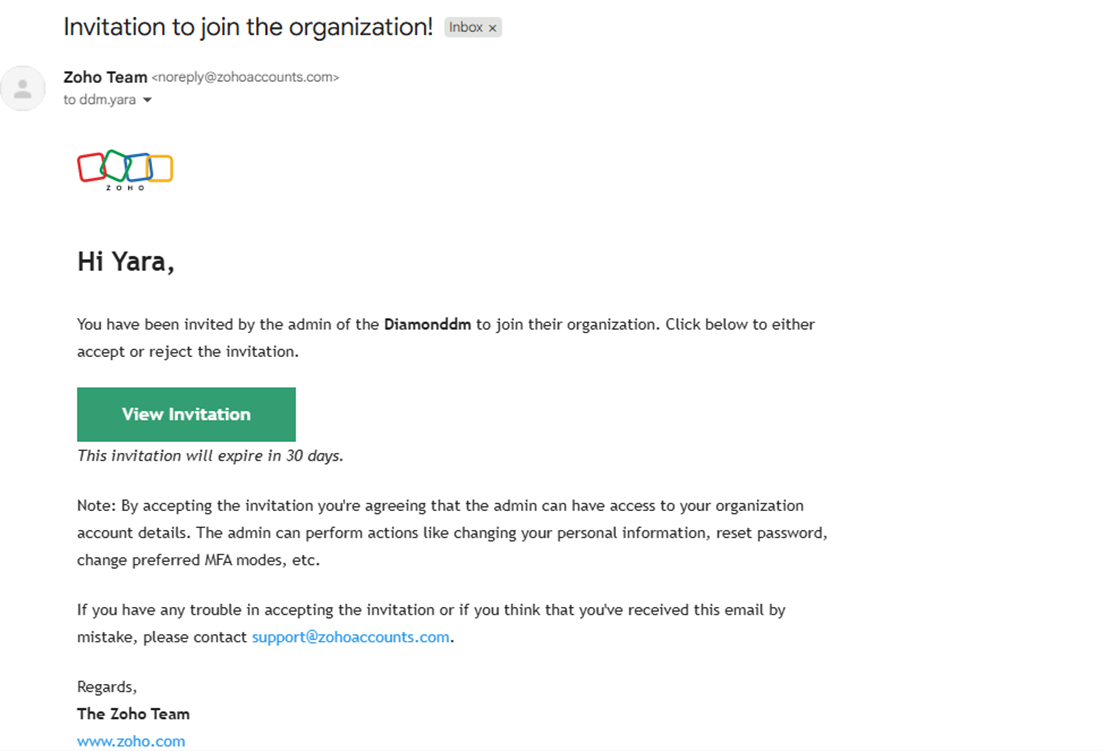
- Open the email from Zoho Team and review the invitation details.
- Click View Invitation, then accept the organisation invitation.
- Create a strong master password, confirm it, tick the acknowledgement box, then click Get Started.
(!!The master password is required every time the assignee accesses Zoho Vault. Zoho states on this screen that if the master password is forgotten, it cannot be recovered.!!)
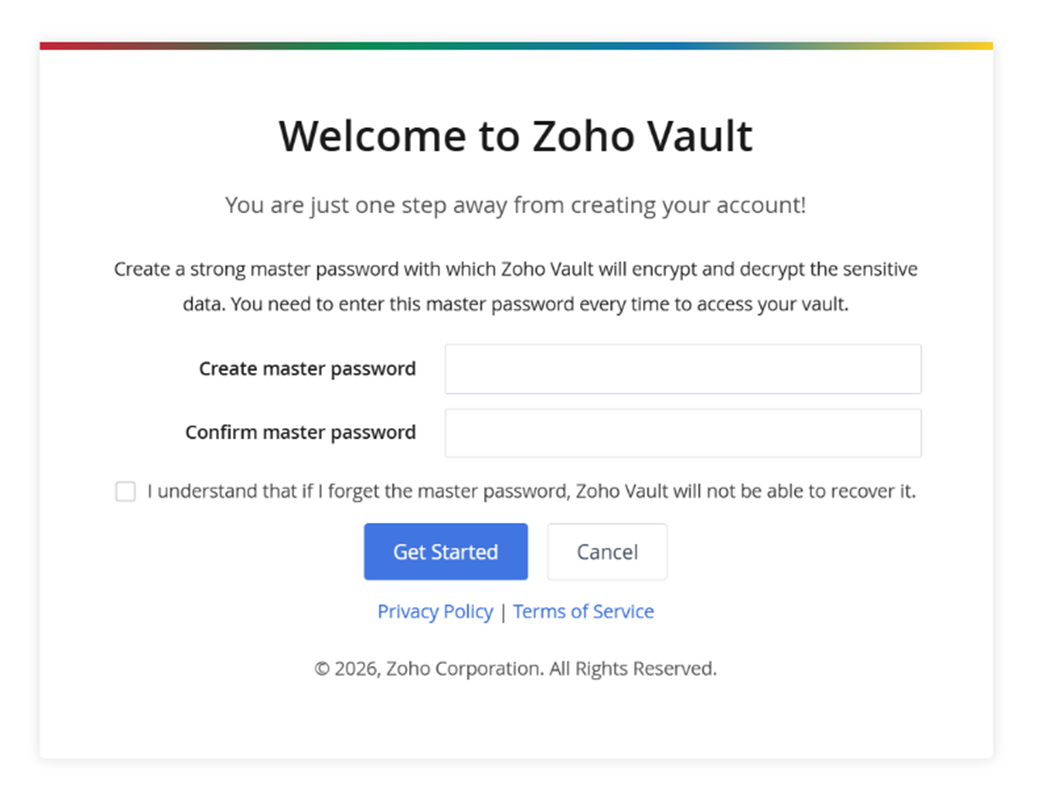
| Master password reminder • Use a long, unique master password that is not reused anywhere else. • Do not store the master password inside Zoho Vault. • After this screen, the assignee should be redirected to the Zoho Vault dashboard. |
Step 2: Confirm Zoho Vault access is successful
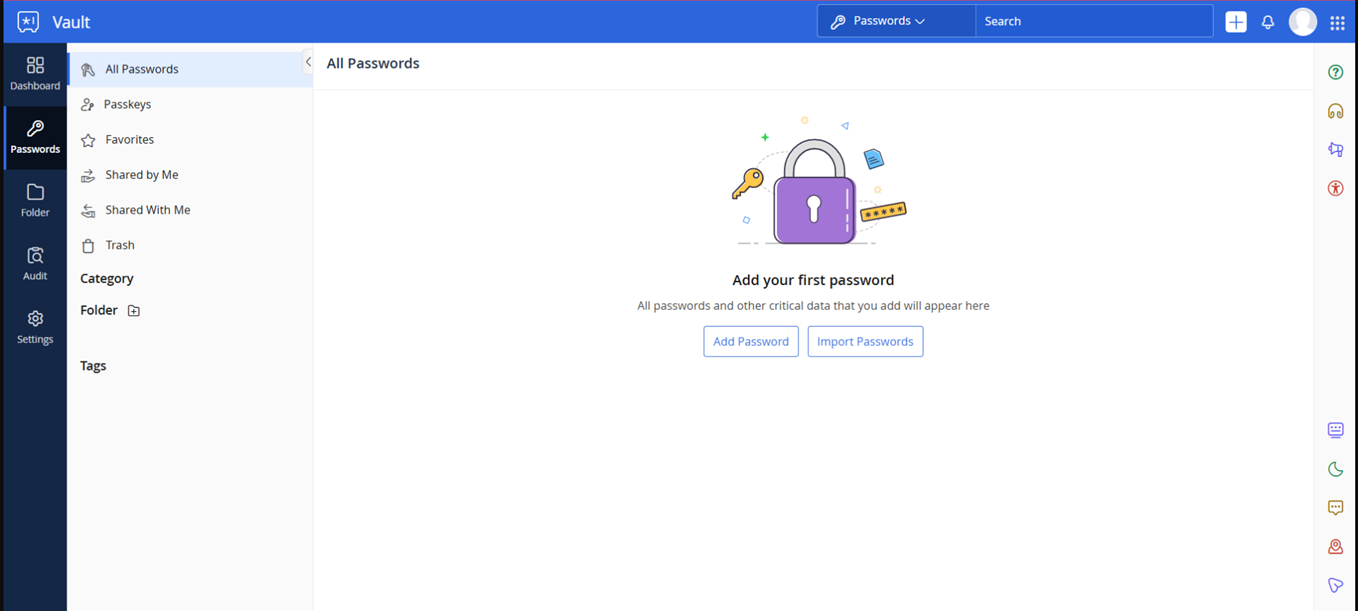
- After completing the master password setup, confirm that the Zoho Vault dashboard opens successfully.
- Take a screenshot of the Dashboard and share it with your PM inside the task
Step 3: Enable 2FA for Zoho Account
- Go to https://accounts.zoho.com/
- Enable Multi-Factor Authentication / 2FA for the Zoho account.
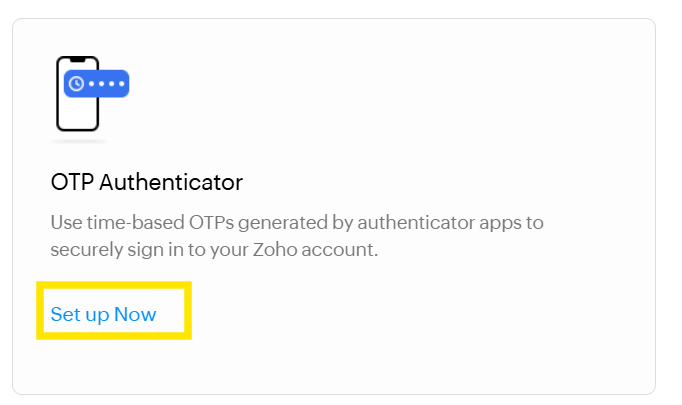
- Select OTP Authenticator
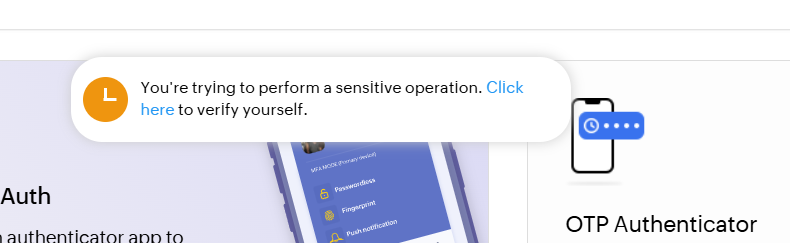
- A pop-up message will appear saying, “You’re trying to perform a sensitive operation. Click here to verify yourself.” Click on [Click here]
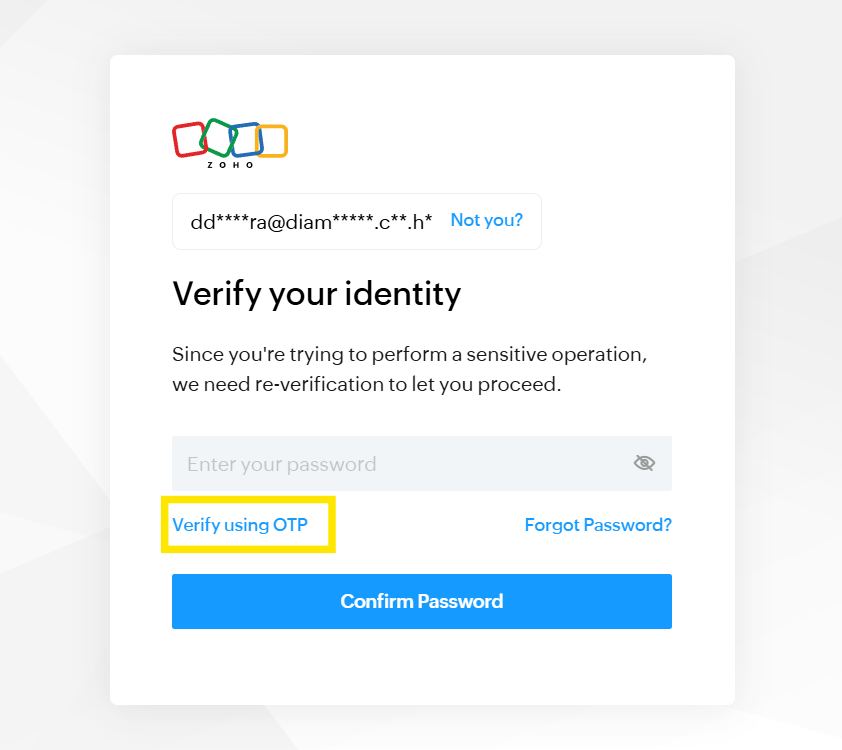
- Ask for OTP to be sent to your email
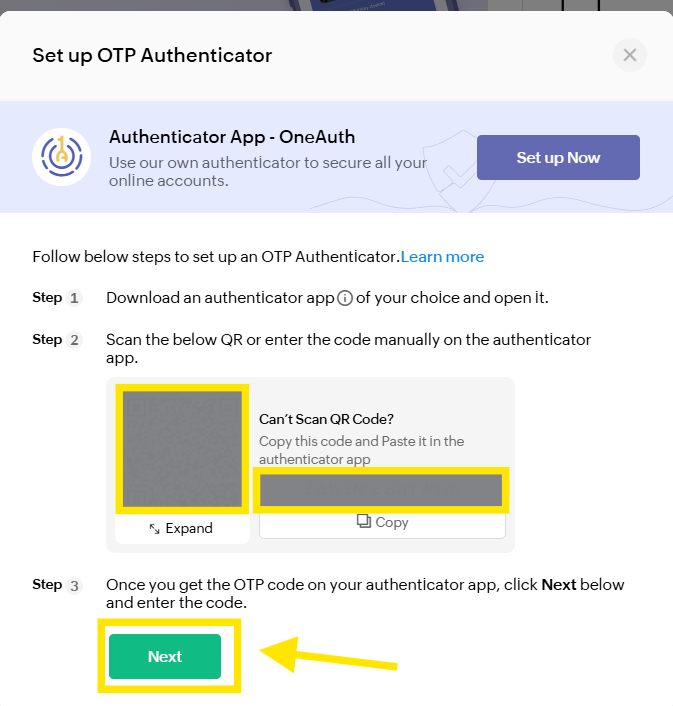
- Download an authenticator app of your choice and open it
- Scan the QR or enter the code manually on the authenticator app.
- Once you get the OTP code on your authenticator app, click Next below and enter the code.
- Backup verification codes
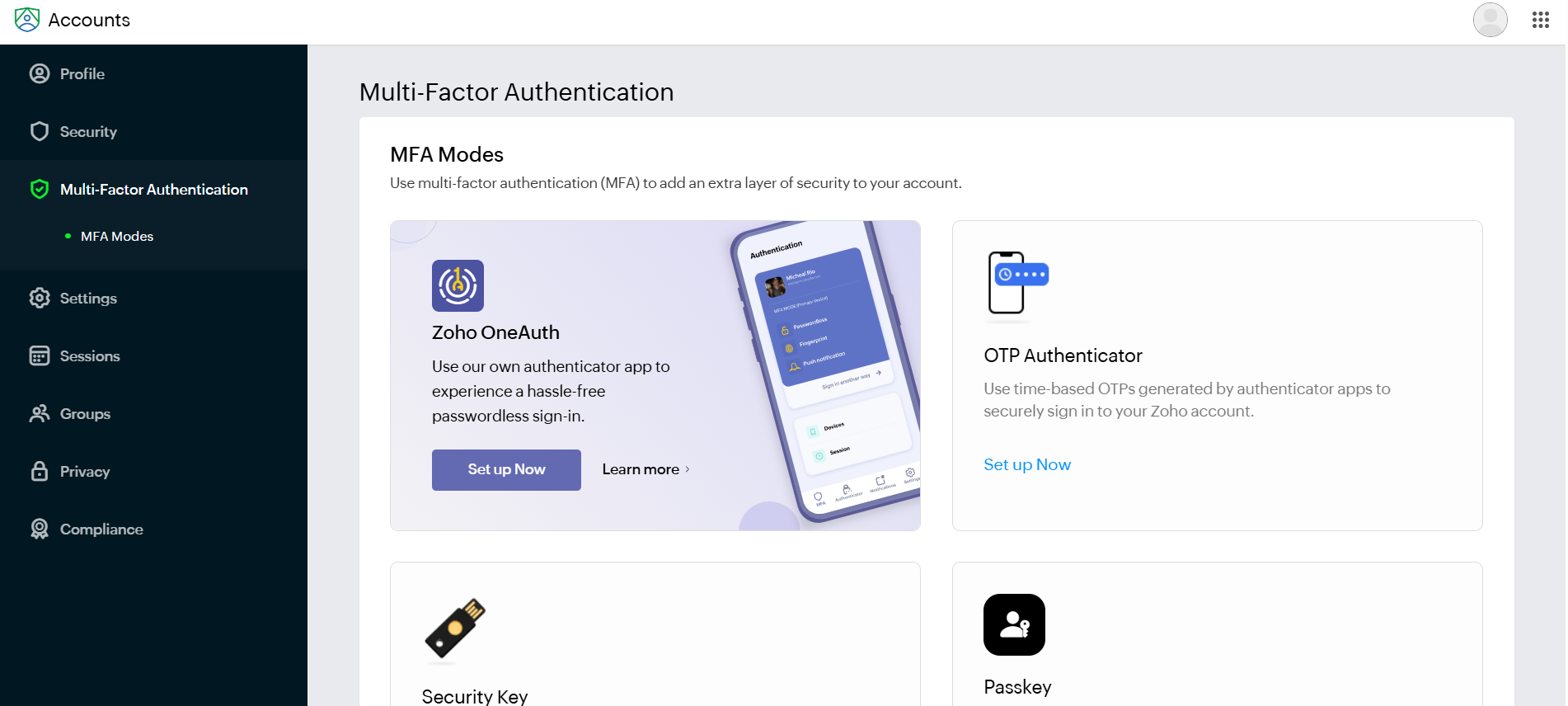
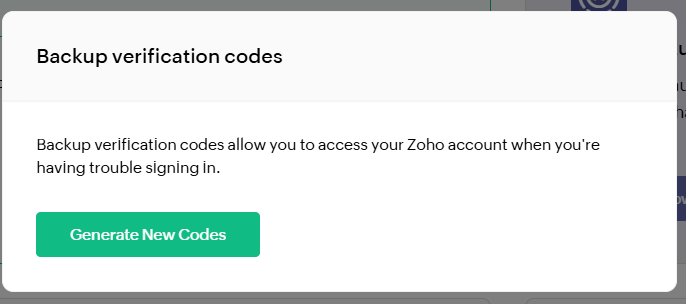
| Suggested 2FA check • Confirm that 2FA is active before adding or managing sensitive credentials. • Save backup codes securely according to organisation rules. |
Step 4: Add the Required Properties When Creating a New Zoho Vault Record
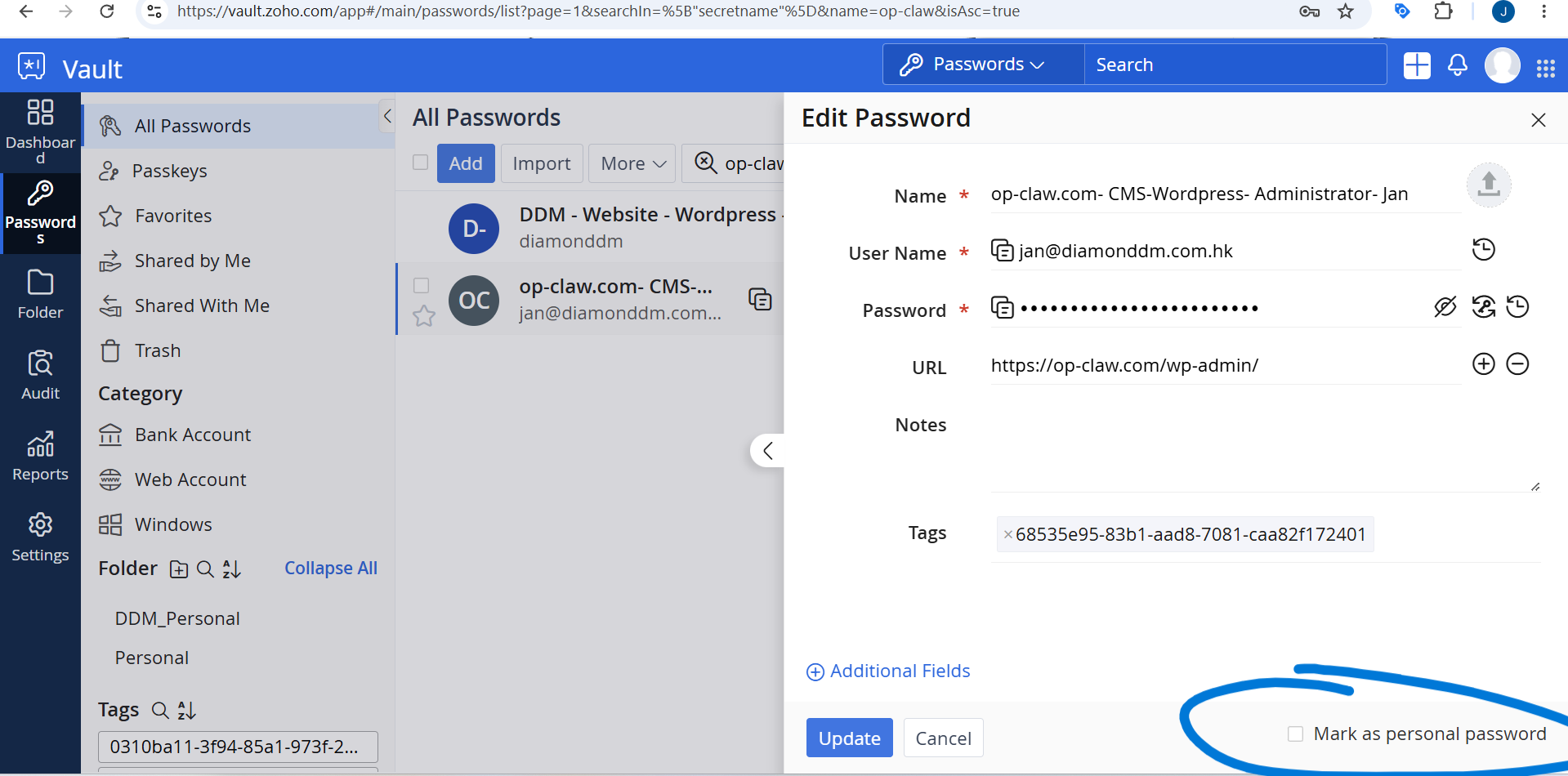
When creating a new password record inside Zoho Vault, the assignee must add the following properties exactly as below:
| Zoho Vault Field | Required Value |
|---|---|
| Name | Digital Assets Attribute Full Name in Organisation Digital Assets View |
| Tag | Digital Assets Attribute ID in Organisation Digital Assets View |
| Username | Digital Assets Value |
| Password | «DIGIATL_ASSETS_ACCESS_PASSWORD» |
| Privilege | Set the password to Manage Privileges for SuperAdmin |
| Reference | Refer to Image [Step 4 – Zoho Vault sharing privilege notification] |
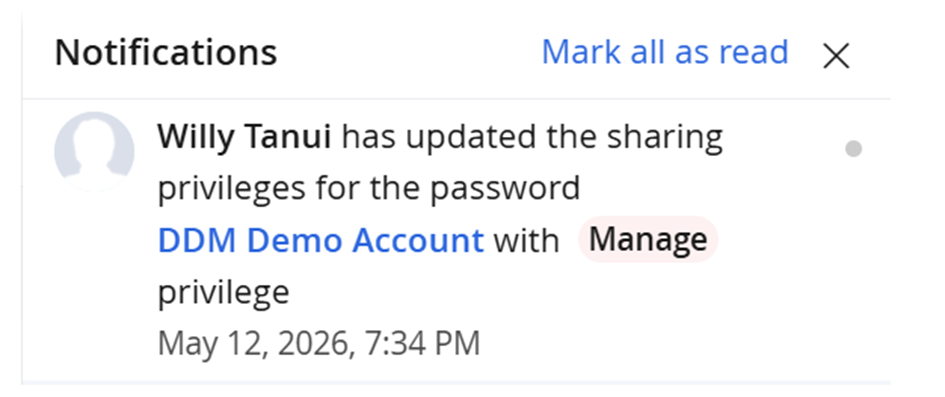
The assignee should copy the required information from the Organisation Digital Assets View page and add it into the correct Zoho Vault fields. The password record must be shared with SuperAdmin using Manage Privileges.
If the newly assigned Zoho Vault record is specific to the assignee only, the assignee should tick the Mark as personal password checkbox before saving or updating the record. This ensures that other teammates cannot see the password.
Step 5: Identify What credentials Should Be Recorded
Before creating a Vault record, confirm which credential type is being added and collect only the required information.
The credential may be one or more of the following:
.pemfile — attach as file.ppkfile — attach as file- API Key
- Password
- Backup Code
Add Organisation Digital Assets Credential to Zoho Vault
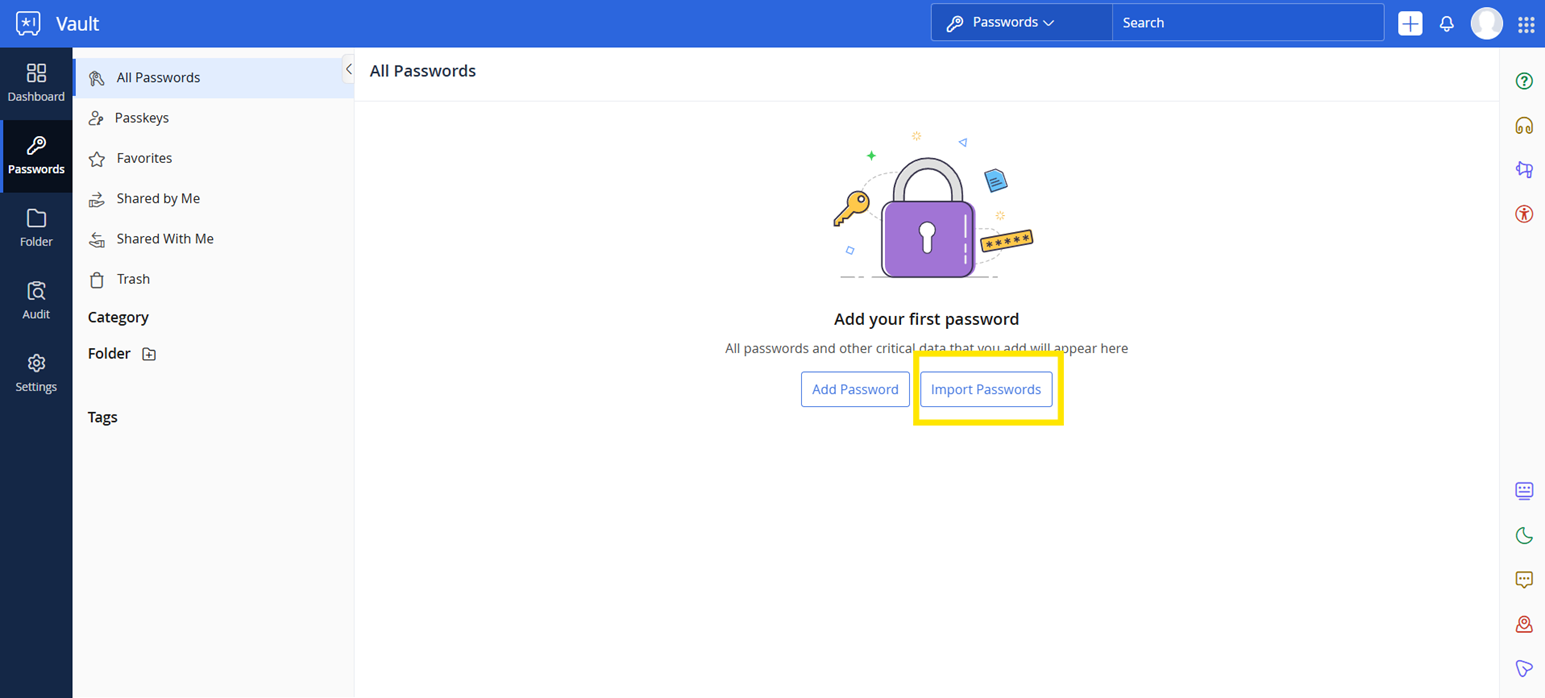
| Purpose of this step 1. This step explains how the assignee imports a new Organisation Digital Assets password or credential into Zoho Vault. 2. The assignee must use the Organisation Digital Assets information and map it correctly inside Zoho Vault before clicking Verify. |
- Find the Digital Assets Attribute ID in Organisation Digital Assets.
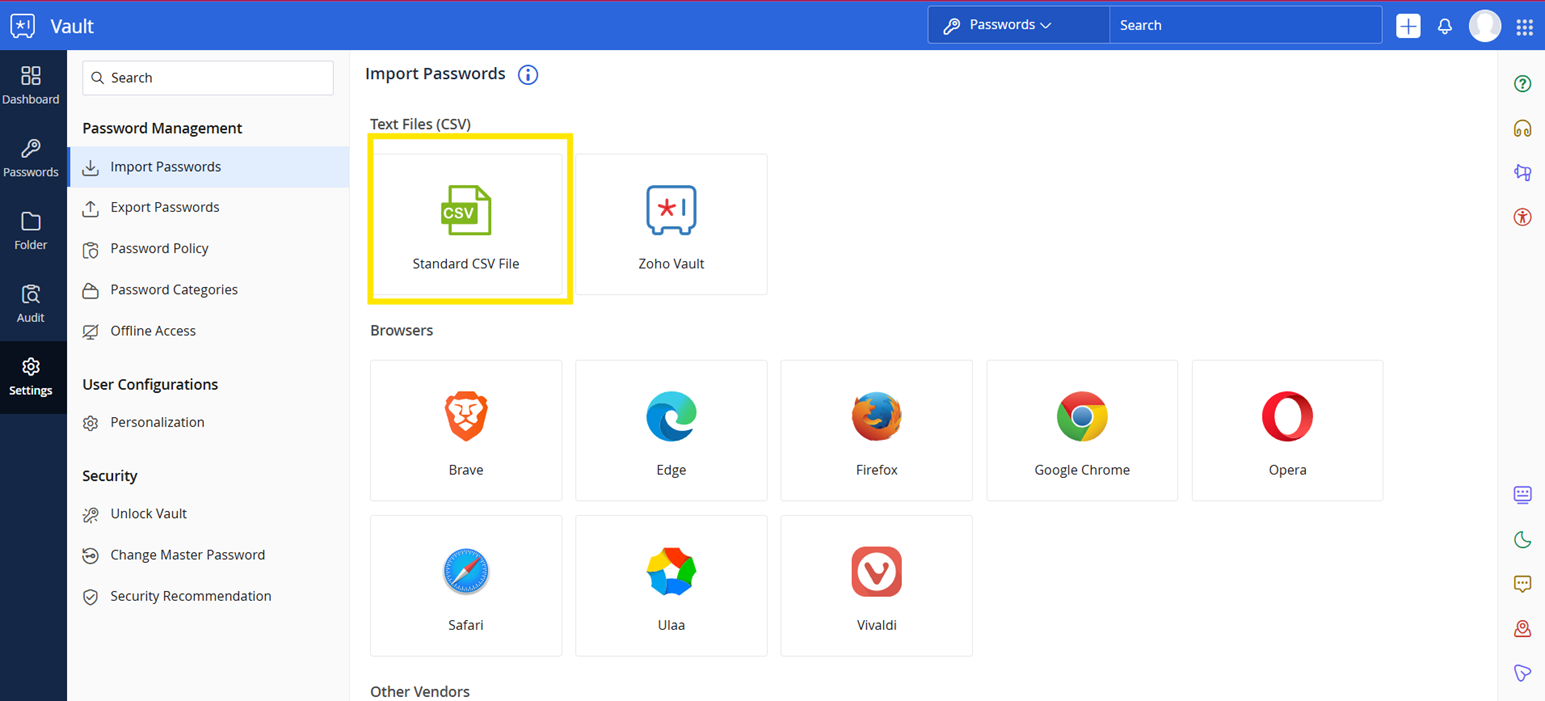
- In Zoho Vault, open the Passwords area and click Import Passwords.
- Under Text Files (CSV), select Standard CSV File.
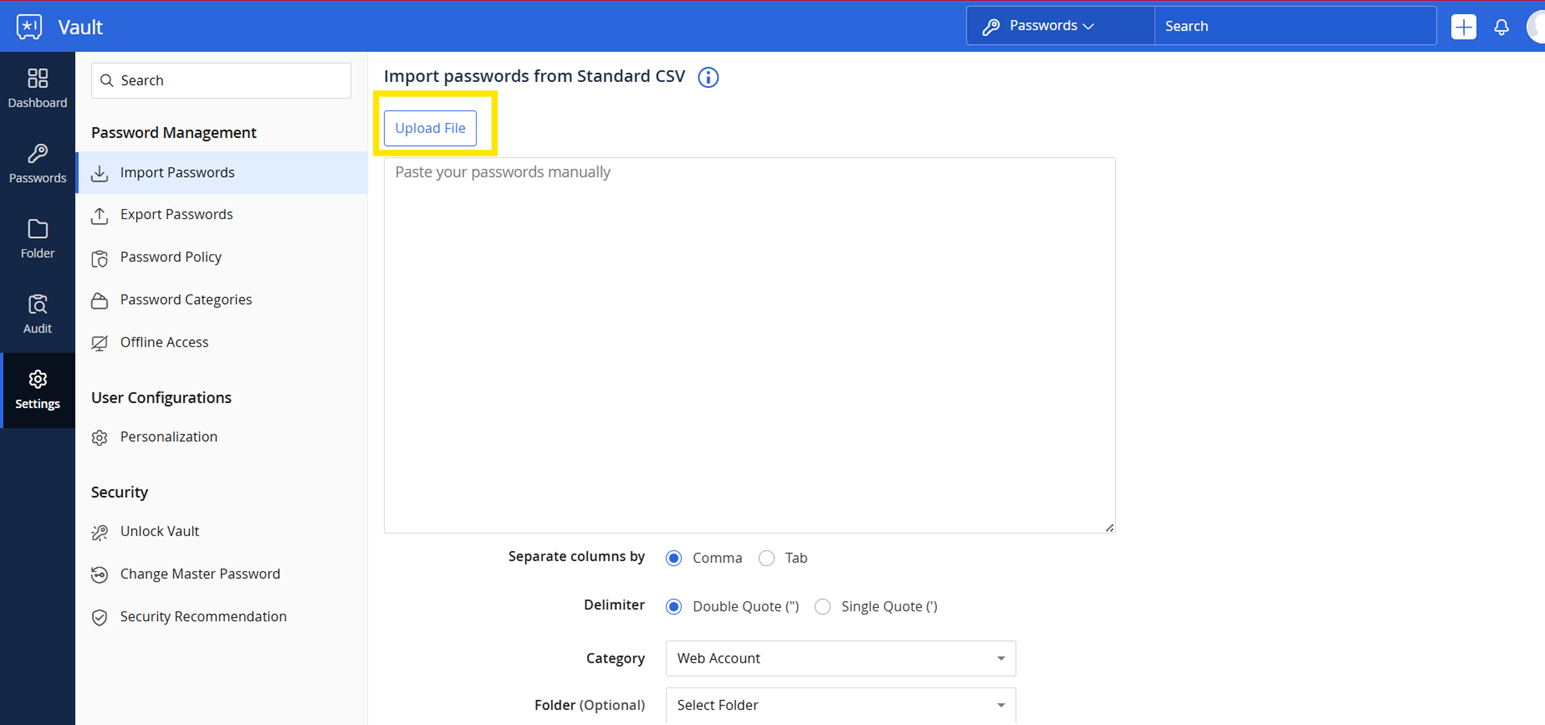
- Click Upload File and upload the prepared CSV file that contains the Organisation Digital Assets credential details.
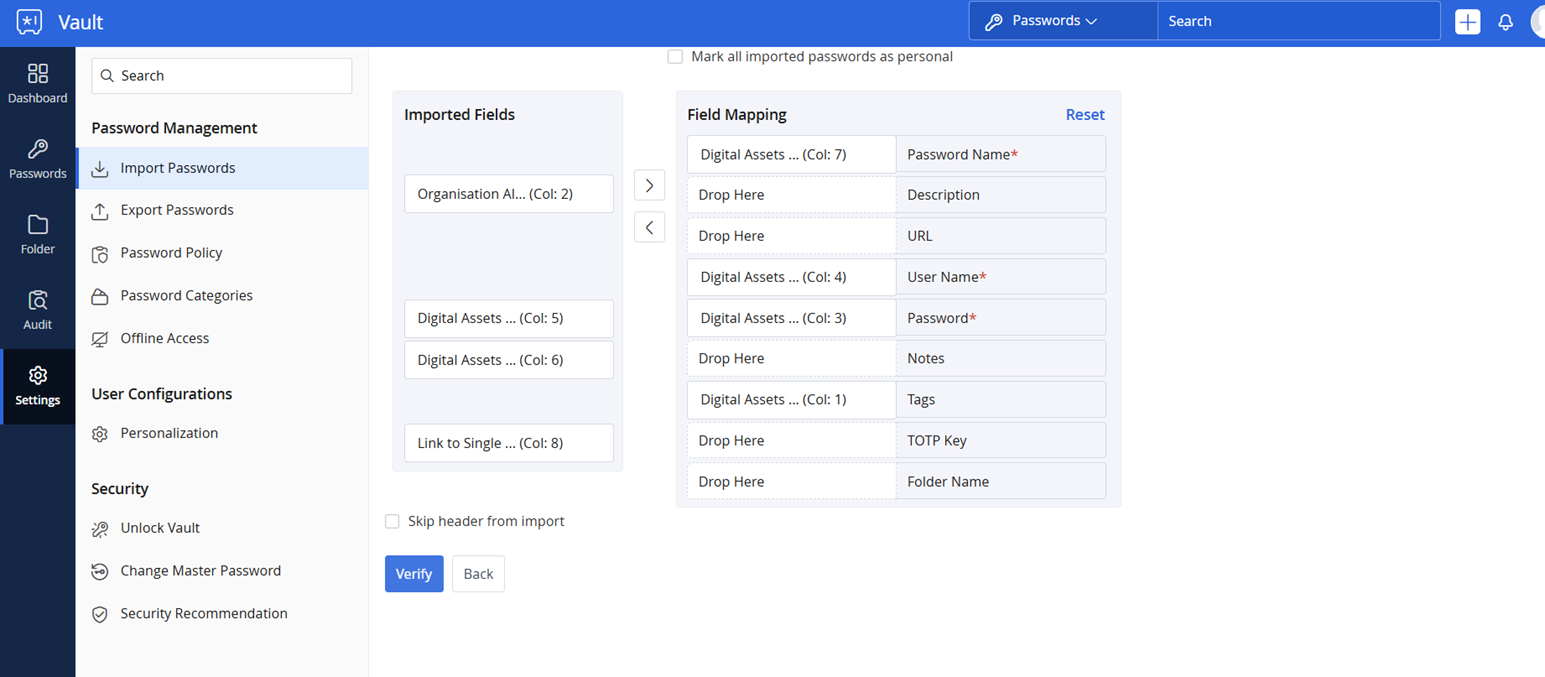
- After uploading the file, set the Field Mapping from the left side to the correct Zoho Vault properties on the right side.
- Name = Digital Assets Attribute Full Name in Organisation Digital Assets. In Zoho Vault, map this to Password Name.
- Tag = Digital Assets Attribute ID in Organisation Digital Assets. In Zoho Vault, map this to Tags.
- Username = Digital Assets Value. In Zoho Vault, map this to User Name.
- Password = «DIGIATL_ASSETS_ACCESS_PASSWORD». In Zoho Vault, map this to Password.
- Set the Password to Manage Privileges for SuperAdmin.
- Name = Digital Assets Attribute Full Name in Organisation Digital Assets. In Zoho Vault, map this to Password Name.
- Click Verify to continue the import process.
- Review the imported password record and confirm that the credential is saved correctly inside Zoho Vault.
- Confirm that SuperAdmin has Manage Privileges for the saved password record.
Conclusion
Remember , in DDM Group there is NO ONE who will help you to reset your password. Always record your login credential to Zoho Vault immediately after you created or modified it. Please be a teammate with civic virtue which will never waste your and others time to reset (or assist you to reset) your password.
Footnotes
- There is no any logical or technical concern. I will skip the step by step on signing up a Zoho Account. ↩︎
- While in the future you may use your Zoho Account to apply for another Zoho Application , it is recommended to use different password for your Zoho Account and Zoho Vault account. ↩︎
- Google Play Store will be taken as an example to demonstrate the steps. ↩︎
Leave a Reply